 Download PDF
Part 9 – Menus and Building Larger Applications
22. Menus and Application Structure
Menus are one of the most important interaction tools in a Prima application. They organize commands, expose application features, and can adjust dynamically at runtime. This chapter explains menu construction step by step - from basic menu syntax to icons, dynamic updates, MRU lists, and finally their integration into a functional text editor.
22.1 Building Menus the Right Way
Prima menus are defined using array references whose structure depends on the number of elements provided. While small arrays work for simple cases, the six-element format gives you the most control and is the recommended form for production applications.

Figure 22.1: Basic Menu
Let’s explore the foundational steps for creating menus.
1. Adding the "File" Menu
A minimal menu bar begins with a top‑level item such as File:
[ 'F~ile' => [ ]

],
- This is the label for the menu item.
- The ~ character specifies a keyboard shortcut (Alt‑accelerator key), here Alt + I (since Alt + F might conflict with another system shortcut on some devices). Without the ~, the label would appear as "File" without a keyboard shortcut.
- This is an empty array reference, indicating there are no submenu items under File yet. It acts as a placeholder for submenus to be added later.
2. Adding Submenus
A typical File menu includes entries such as New, Exit, and a separator:
[ 'F~ile' => [
                [ 'New', 'Ctrl+N', '^N', sub { } ],
                [], # separator line
                [ 'Exit', 'Ctrl+Q', '^Q', sub { exit } ],
             ]
],
Here's what each component does:
- Adds a New menu item.
- Includes Ctrl+N or ^N which represent the displayed and actual keyboard accelerators.
- Assigns an empty callback function: sub { }, which you can later replace with your desired functionality.
- Represents a separator line between menu items.
- Adds an Exit menu item.
- Includes displayed and actual keyboard accelerators: Ctrl+Q or ^Q.
- Executes the exit function to close the application.
Prima also supports a shortcut‑style syntax: you can define Exit as
22.2 Icons, Dynamic Menus, and Recent- Files Lists
22.2.1 Submenu icons
Submenu items are constructed using menu description arrays, which can contain up to six elements. While arrays with fewer elements are interpreted differently, the most detailed format - a six-scalar array - provides a fully qualified text-item description (and is all you need!). The format for this array is as follows:
An example with icons:
[ 'F~ile' => [ # [ NAME, TEXT/IMAGE, ACCEL, KEY, ACTION/SUBMENU, DATA ] [ 'New', ' New', 'Ctrl+N', '^N', sub { print("new\n"); }, { icon => $icon_new } ], [],# space in second field is necessary to separate icon and text [ 'Open', ' Open', 'CTRL+O', '^O', sub { print("open\n"); }, { icon => $icon_open } ], [ 'Save', ' Save', 'CTRL+S', '^S', sub { print("save\n"); }, { icon => $icon_save } ], [], [ 'Exit', ' Exit', 'Ctrl+Q', '^Q', sub { exit }, { icon => $icon_quit } ], ] ],
Listing 22.1: Menu and Submenu Items
The fields here are:
- NAME: the internal identifier for the menu item, e.g., 'Open'.
- TEXT: the caption displayed in the menu, e.g., " Open".
- ACCEL: a description of the shortcut for display purposes, e.g., Ctrl+O.
- KEY: the key binding for the shortcut, where ^ represents the Ctrl key, e.g., ^O.
- SUBMENU: the action or subroutine to execute when the menu item is selected, e.g.,
sub { print("open\n"); }. - DATA: additional data, such as an icon reference, e.g.,
{ icon => $icon_open } .
The icons are loaded using the
my $icon_new = Prima::Icon->load('new.png');
my $icon_open = Prima::Icon->load('open.png');
my $icon_save = Prima::Icon->load('save.png');
my $icon_quit = Prima::Icon->load('quit.png');
The code of the next application should be fully clear now.
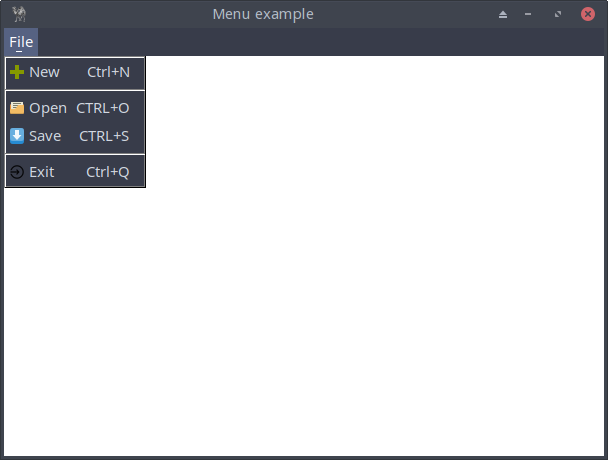
Figure 22.2: Submenu Icons
use Prima qw(Application); use lib '.'; my $icon_new = Prima::Icon->load('new.png'); my $icon_open = Prima::Icon->load('open.png'); my $icon_save = Prima::Icon->load('save.png'); my $icon_quit = Prima::Icon->load('quit.png'); my $mw = Prima::MainWindow->new( text => "Menu example", size => [600, 400], backColor => cl::White, icon => Prima::Icon->load('icon.png'), # menuFont => { name => 'Courier New', size => 11, }, menuItems => [ [ 'F~ile' => [# [ NAME, TEXT/IMAGE, ACCEL, KEY, ACTION/SUBMENU, DATA ] [ 'New', ' New', 'Ctrl+N', '^N', sub { print("new\n"); }, { icon => $icon_new } ], [],# space necessary to separate icon and text [ 'Open', ' Open', 'CTRL+O', '^O', sub { print("open\n"); }, { icon => $icon_open } ], [ 'Save', ' Save', 'CTRL+S', '^S', sub { print("save\n"); }, { icon => $icon_save } ], [], [ 'Exit', ' Exit', 'Ctrl+Q', '^Q', sub { exit }, { icon => $icon_quit } ], ] ], ); Prima->run;
Listing 22.2: Submenu Icons
If you use a monospaced menu font. e.g.
then the menu items are perfectly right-aligned.
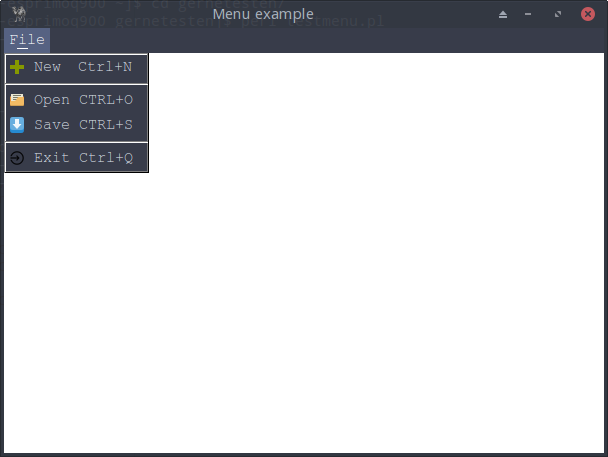
Figure 22.3: Submenu Icons Right Aligned
Examples of monospaced fonts on Linux include:
- Courier (Standard)
- DejaVu Sans Mono
- Ubuntu Mono
- Monospace (Generic fallback font)
- Droid Sans Mono
and they are definitely worth trying out.
22.2.2 Dynamic menus and Recent-Filelist
Dynamic menus are about changing menu structure at runtime, while a Recent-Files list - which is simply a special case of a dynamic menu- uses that mechanism to display a changing history of recently opened files.
Here an example of a dynamic menu: an update checker which could be found in the Help menu. When the application starts, the menu may contain 'Check for updates...' as in:
If the program later discovers that a new version is available, the label can be updated instantly: 'Download version 2.0.1.'
In Prima this is done by modifying the menu structure and reassigning it:
sub check_for_updates { # ----------------------------------------------- # Step 1: Simulate discovering a new version # ----------------------------------------------- # Pretend we checked online and found version 2.0.1 my $new_version = "2.0.1";# ----------------------------------------------- # Step 2: Loop through all top-level menus # $menu_items contains arrays like ['F~ile', [...]], ['Hel~p', [...]] # ----------------------------------------------- foreach my $menu (@$menu_items) {# Skip everything except the Help menu # - $menu->[0] is the menu name ('F~ile', 'Hel~p', etc.) # - $menu->[1] should be an arrayref with all submenu items next unless $menu->[0] eq 'Hel~p' && ref($menu->[1]) eq 'ARRAY';# ----------------------------------------------- # Step 3: Loop through all items inside Help menu # ----------------------------------------------- foreach my $item (@{$menu->[1]}) {# Skip separators or any item without an ID # - ref($item) eq 'ARRAY' ensures it's a proper menu item # - defined $item->[0] ensures it has an ID if (ref($item) eq 'ARRAY' && defined $item->[0] && $item->[0] eq 'ID10') {# ----------------------------------------------- # Step 4: Found our "Check for updates" menu item # Change its label to show the new version # ----------------------------------------------- $item->[1] = "Download version $new_version";# Optional console feedback print "New version found! Menu updated.\n";# Stop looking through Help items — we already found it last; } } last; # Stop looking through top-level menus — Help is unique }# ----------------------------------------------- # Step 5: Reassign the menuItems structure # This tells Prima to redraw the menu so the label change appears # ----------------------------------------------- $mw->menuItems($menu_items); }
Listing 22.3 Dynamic Menu Modifying a Label
In a File menu, MRU stands for Most Recently Used. It's a list of the files that were opened or edited most recently in the application. This feature helps users quickly reopen recent files without needing to browse for them again. An example is the 'Recent Files' entry in my preferred lightweight GUI text editor, Geany.
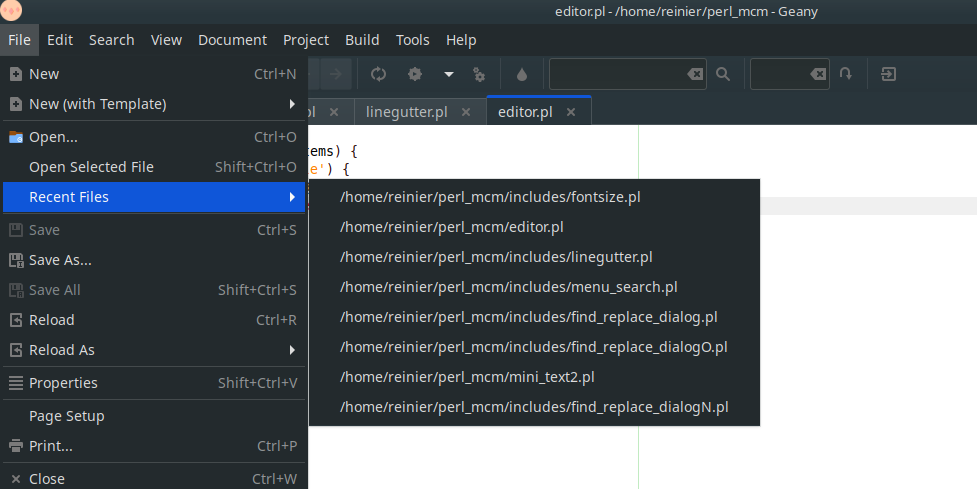
Figure 22.4: Submenu MRU in Geany
The key idea is to replace only the submenu array, not the whole menu. There is more than one solution. Here I only provide the fastest, while avoiding redundant parsing and memory operations. To give you an initial idea, the following code replaces the previous MRU list with a new one.
use Prima qw(Application Menus); my $mw; my $menu_items; my $mru_menu; sub update_recent_files { foreach my $menu (@$menu_items) { next unless $menu->[0] eq 'File'; # Look inside the "File" menu items foreach my $item (@{$menu->[1]}) {# Find the item with ID2 (the Recent files submenu) if (ref($item) eq 'ARRAY' and $item->[0] eq 'ID2') {# Replace the submenu items with a new list $item->[2] = [ ['file3.txt' => sub { print "File 3\n"; }], ['file4.txt' => sub { print "File 4\n"; }], ]; last; } } last; }# Reassign only the menuItems — keeps same menu object $mw->menuItems($menu_items);# print "Updated Recent files submenu!\n"; } sub build { $menu_items = [ ['File' => [ ['ID1', '~Open', 'Ctrl+O', '^O', sub { update_recent_files(); }],# "Recent files" submenu (initial entries from $mru_menu) ['ID2', 'Recent files' => $mru_menu ], [], ['ID3', '~Exit', 'Alt+X', km::Alt | ord('x'), sub { shift->close }], ]], ]; return $menu_items; }# ------------------------------------------------------------ # Initial contents of the "Recent files" submenu. # These will later be replaced by update_recent_files(). # ------------------------------------------------------------ $mru_menu = [ ['file1.txt' => sub { print "File 1\n"; }], ['file2.txt' => sub { print "File 2\n"; }], ]; $mw = Prima::MainWindow->new( text => 'Efficient Menu Update', menuItems => build(), ); Prima->run;
Listing 22.4: Fastest MRU Implementation (with In-place Modification)
For a Geany-like MRU list, you need a file that has a MRU list, such as my mru.txt, consisting of files I opened recently :
/home/reinier/perl_mcm/data/repetition.mcm
/home/reinier/perl_mcm/data/bach_bwv565.abc
/home/reinier/bmt/schumann_WO024.abc
...
Load this file when the program starts to (re)build the MRU menu.
sub load_mru {
    my $file = 'mru.txt';

    return [] unless -e $file;   # no MRU file yet

    open my $fh, '<', $file or return [];

    my @MRU_items;
    my $i = 0;
    while (my $line = <$fh>) {
        chomp $line;
        next if $line eq '';      # skip empty lines

        $i++;
        # defining the MRU menu items
        push @MRU_items, [
            '',                    # empty ID
            "$i: $line",           # number + filename as single string
            sub { open_mru_file($line) } # callback
        ];
    }

    close $fh;

    return \@MRU_items;
}
Listing 22.5: Reading mru.txt and Return \@MRU_items
Use this as follows:
So what happens if you open a new file or save your text into a new file? Well, basically this:
- Update mru.txt with the current file at the top
- Remove any duplicates
my $mru_file = "mru.txt"; my $new_entry = "/home/reinier/bmt/schumann_WO024.abc"; # reopen a file that exist in mru.txt # Read existing MRU entries open my $in, "<", $mru_file or die "Cannot open $mru_file: $!"; my @lines = <$in>; close $in; chomp @lines;# Remove all occurrences of the new entry @lines = grep { $_ ne $new_entry } @lines;# Add new entry at the top unshift @lines, $new_entry;# Write new list back to file open my $out, ">", $mru_file or die "Cannot write $mru_file: $!"; print $out "$_\n" for @lines; close $out;
Listing 22.6: Updating mru.txt
Invoke now the code of Listing 22.5 and your MRU-list is updated.
23. A Full Application: Building a Text editor
The following sections demonstrate how menus integrate into a real application. Each step adds new functionality: building the editor, adding preferences, file operations, and search/replace.
23.1 Base Structure of the Editor
We begin with a simple editor application containing:
- a menu bar (File, Edit, Help), and
- a central
Prima::Edit widget.
This establishes the foundation upon which later features - preferences, file dialogs, and search/replace - are built.
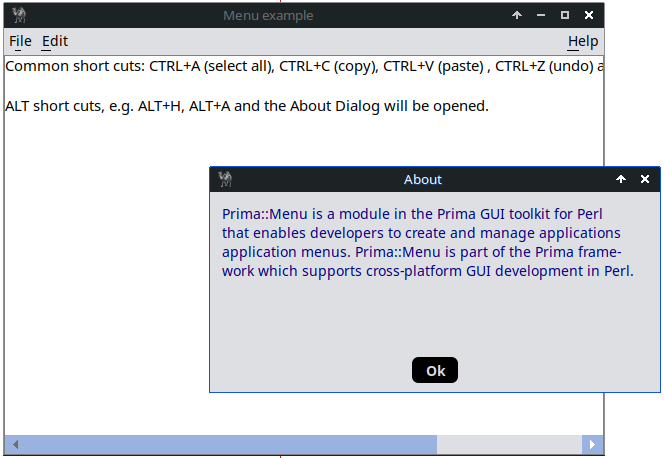
Figure 23.1: Editor with Basic Menu
use Prima qw( Label Edit Buttons ComboBox Application ); use Prima::Menus; use lib '.'; # my custom message dialog require "showMessageDialog.pl"; my $editor; my $mw; $mw = Prima::MainWindow->new( text => "Menu example", size => [600, 400], backColor => cl::White, icon => Prima::Icon->load('icon.png'), menuItems => [ [ 'F~ile' => [ [ 'New', 'Ctrl+N', '^N', sub { $editor->set(text => ''); $editor->insert_text("You clicked NEW") } ], [], # divisor line [ 'Exit', 'Ctrl+Q', '^Q', sub { exit } ], ] ], [ '~Edit' => [ ['Undo' => 'Ctrl+Z' => '^Z', sub { $editor->undo }], ['Redo' => 'Ctrl+R' => '^R' , sub { $editor->redo }], [], ['Cut' => 'Ctrl+X' => '^X', sub{ $editor->cut }], ['Copy' => 'Ctrl+C' => '^C', sub{ $editor->copy }], ['Paste' => 'Ctrl+V' => '^V', sub{ $editor->paste }], [], ['Delete' => 'Del' => kb::NoKey, sub{ $editor->delete_block } ], ['Select all' => 'Ctrl+A' => '^A', sub{ $editor->select_all } ], ] ], [],# divisor in main menu: menuitem Help are now at the right [ '~Help' => [ ['~About' => sub{ showMessageDialog(450, 200, "About", "Prima::Menu is a module in the Prima GUI toolkit for Perl\n" . "that enables developers to create and manage applications\n" . "application menus. Prima::Menu is part of the Prima frame-\n" . "work which supports cross-platform GUI development in Perl.", ta::Left);}], ] ], ], ); $editor = $mw->insert( Edit => pack => { fill => 'both', expand => 1, side => 'left', pad => 0 }, size => [500, 300], text => "Common short cuts: CTRL+A (select all), CTRL+C (copy), " . "CTRL+V (paste) , CTRL+Z (undo) and Delete work\n\nALT " . "short cuts, e.g. ALT+H, ALT+A and the About Dialog " . "will be opened.", font => { size => 11, }, color => cl::Black, backColor => 0xFFFFFF, autoSelect => 0, growMode => gm::Client, name => 'Editor', popupItems => [ ['Undo' => 'Ctrl+Z' => '^Z', sub{ $_[0]->undo }], ['Redo' => 'Ctrl+Y' => '^Y', sub{ $_[0]->redo }], [], ['Cut' => 'Ctrl+X' => '^X', sub{ $_[0]->cut }], ['Copy' => 'Ctrl+C' => '^C', sub{ $_[0]->copy }], ['Paste' => 'Ctrl+V' => '^V', sub{ $_[0]->paste }], [], ['Delete' => 'Del' => kb::NoKey, sub{ $_[0]->delete }], ['Select all' => 'Ctrl+A' => '^A' => sub { $_[0]->select_all }], ], ); $editor->set( current => 1 ); $editor->cursor_cend(); Prima->run;
Listing 23.1: Editor with Basic Menu
In the following snippets, only new or modified code will be shown.
23.2 Preferences
The menu bar is extended with a "Preferences" menu item, which contains three submenu options.
- The "Font Size" option loads an external file ‘fontsize.pl’ with a simple list box for selection (see below).
- The "Word Wrap" option is a checkbox that toggles between on and off by setting the
wordWrap property. - The "Background Color" is set by assigning a color value to the
backColor property. - The "Background Color Header" is a disabled submenu item.
These options demonstrate the use of special characters such as

Figure 23.2: Basic Menu Extended with Preferences Menu Item
require "fontsize.pl"; my $editor; my $mw; $mw = Prima::MainWindow->new( (...) [], # divisor in main menu: menuitem Preferences and Help are now at the right code_comment> [ 'P~references' => [ [ 'Font size', 'F~ont size', '', '', sub { my $retVal = mcFontsize(); $editor->set( font => { size => $retVal } );} ], [], [ "@" => "~Wordwrap" => sub { ($_[2]) ? $editor->set( wordWrap => 1 ) : $editor->set( wordWrap => 0 ); } ], [], [ '-','Background colour', '', ], [ '*(' => 'w~hite' => sub { $editor->backColor(cl::White), } ], [ '' => 'g~reyish-blue' => sub { $editor->backColor(0x839496), } ], [ ')' => 'd~ark grey' => sub { $editor->backColor(0x4F4F4F), } ], ] ], (...) );
Listing 23.2: Basic Menu Extended with Preferences Menu Item
And
# fontsize.pl # default value my $retVal = 11; sub mcFontsize { my $popup = Prima::Dialog->create( size => [300,200], text => "Select a font size", centered => 1, icon => Prima::Icon->load('icon.png'), ); $lb = $popup->insert( "ListBox", name => 'ListBox1', origin => [50, 80], size => [200, 100], multiSelect => 0,# if 0, the user can select only one item. font => { size => 10}, items => [ '8', '9', '10', '11', '12', '14' ], focusedItem => 3, align => ta::Left, ); $popup->insert( Button => pack => { fill => 'none', side => 'bottom', pad => 15 }, size => [50, 30], text => "Ok", onClick => sub { my $mcSelectedOptions = ""; foreach (@{ $lb->selectedItems }){ $mcSelectedOptions = $lb->items->[$_]; }; $retVal = $mcSelectedOptions; $popup->destroy; } );# execute brings the widget in a modal state $popup->execute(); return($retVal); }# return a true value to the interpreter 1;
Listing 23.3: File fontsize.pl
23.3 File Options
We add now three File menu items that invoke built-in dialogs: Open, Save, and Save As. First, we need to extend the
use Prima qw(Label Edit Buttons ComboBox Application Dialog::FileDialog);
The menu items Open, Save, and Save As are connected to functions with predictable names:
[ 'Open', 'Ctrl+O', '^O', sub { open_file_dialog  } ],
[],
[ 'Save', 'Ctrl+S', '^S', sub { save_file_dialog  } ],
[ 'Save as', '', '', sub { save_as_file_dialog  } ],
The method
my $open = Prima::Dialog::OpenDialog->new(
        filter => [ ['TXT files' => '*.txt'],  ['All' => '*'] ]
);
The method
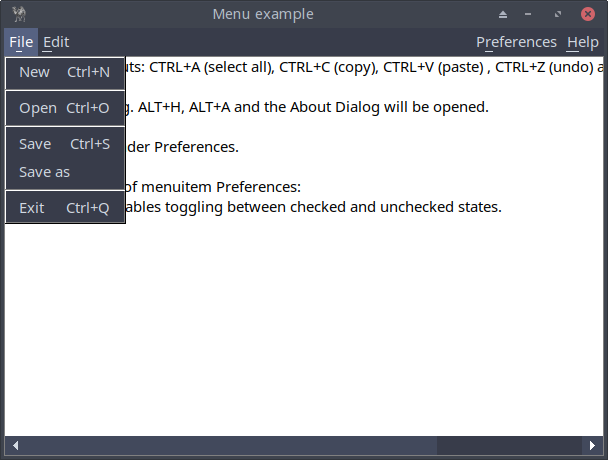
Figure 23.3: Extended File Menu Item
[ 'F~ile' => [ [ 'New', 'Ctrl+N', '^N', sub { $current_filename = ''; $editor->set(text => ''); $editor->insert_text("You clicked NEW") } ], [], # divisor line [ 'Open', 'Ctrl+O', '^O', sub { open_file_dialog } ], [], [ 'Save', 'Ctrl+S', '^S', sub { save_file_dialog } ], [ 'Save as', '', '', sub { save_as_file_dialog } ], [], [ 'Exit', 'Ctrl+Q', '^Q', sub { exit } ], ] ], ################################################################################# # open_file_dialog ################################################################################# my $current_filename; sub open_file_dialog { my $open = Prima::Dialog::OpenDialog->new( filter => [ ['TXT files' => '*.txt'], ['All' => '*'] ] ); if ($open->execute) { open(my $fh, '<', $open->fileName) or die "Cannot open file '$open->fileName' for reading: $!"; local $/; my $file_content = <$fh>; $editor->set( text => $file_content ); $mw->set( text => $open->fileName ); close($fh); $current_filename = $open->fileName; } }################################################################################# # save_as_file_dialog ################################################################################# sub save_as_file_dialog { my $save = Prima::Dialog::SaveDialog->new( ); if ($save->execute) { my $content = $editor->text; $current_filename = $save->fileName; open(my $fh, '>', $save->fileName) or die "Cannot open file '$save->fileName' for writing: $!"; print $fh $content; $mw->set( text => $save->fileName ); close($fh); } }################################################################################# # save_file_dialog ################################################################################# sub save_file_dialog { my $content = $editor->text; if (defined($current_filename) ne "") { open(my $fh, '>', $current_filename) or die "Cannot open file '$current_filename' for writing: $!"; print $fh $content; close($fh); } else { save_as_file_dialog(); } }
Listing 23.4: Extended File Menu Item
23.4 Search/Replace Options: the hard way
The search and replace functions use the built-in dialogs
For this reason, I created a simpler and more compact version - an application containing only the Edit menu. I will present this version in a few steps. After going through them, you should be able to understand the full Prima example more easily.
23.4.1 profile_default Method
This method defines default properties for the window, including menu items.
sub profile_default {
    my %def = %{$_[0]->SUPER::profile_default};
    return {
        %def,
        fileName => undef,
        menuItems => [...],
    };
}
23.4.2 init Method
This method initializes the editor window.
sub init { my ($self, %profile) = @_; %profile = $self->SUPER::init(%profile); my $fn = $profile{fileName} || '.Untitled'; $self->{editor} = $self->insert( 'Prima::Edit' => name => 'Edit', # binds the editor’s text to a scalar reference (`$cap`) textRef => \my $cap, origin => [0, 0], size => [$self->width, $self->height], hScroll => 1, vScroll => 1, growMode => gm::Client, # ensures the editor resizes with the window wordWrap => 1, ); $self->text($fn); $self->{editor}->focus;# initializes a placeholder for find/replace data $self->{findData} = undef; return %profile; }
23.4.3 find_dialog Method
sub find_dialog { # $findStyle: if 1, it's a Find operation; if 0, it's Replace. my ($self, $findStyle) = @_; %{$self->{findData}} = ( replaceText => '', findText => '', replaceItems => [], findItems => [], options => 0, scope => fds::Cursor, ) unless $self->{findData}; my $fd = $self->{findData};# %prf: pre-fills the dialog with previous search/replace data my %prf = map { $_ => $fd->{$_} } qw(findText options scope); $prf{replaceText} = $fd->{replaceText} unless $findStyle; $findDialog ||= Prima::Dialog::FindDialog->new; $findDialog->set(%prf, findStyle => $findStyle); $findDialog->Find->items($fd->{findItems}); $findDialog->Replace->items($fd->{replaceItems}) unless $findStyle; my $rf = $findDialog->execute; if ($rf != mb::Cancel) { for (qw(findText options scope)) { $self->{findData}{$_} = $findDialog->$_(); } $self->{findData}{replaceText} = $findDialog->replaceText() unless $findStyle; $self->{findData}{result} = $rf; $self->{findData}{asFind} = $findStyle; @{$self->{findData}{findItems}} = @{$findDialog->Find->items}; @{$self->{findData}{replaceItems}} = @{$findDialog->Replace->items} unless $findStyle; return 1; } return 0; }
23.4.4 do_find Method (The Core Logic)
sub do_find { my $self = $_[0]; my $e = $self->{editor}; my $p = $self->{findData}; my (@start, @end); my $success; my @sel = $e->has_selection ? $e->selection : (); FIND: { # @start and @end Logic: # - determines where to start/end the search based on scope and # current selection # - uses ternary operators to handle different cases # (e.g., fds::Top, fds::Bottom) # Calculate @start if ($$p{scope} != fds::Cursor) { if (@sel) { @start = $$p{scope} == fds::Top ? ($sel[0], $sel[1]) : ($sel[2], $sel[3]); } else { @start = $$p{scope} == fds::Top ? (0, 0) : (-1, -1); } } else { @start = $e->cursor; }# Calculate @end if (@sel) { @end = $$p{scope} == fds::Bottom ? ($sel[0], $sel[1]) : ($sel[2], $sel[3]); } else { @end = $$p{scope} == fds::Bottom ? (0, 0) : (-1, -1); }# Perform the search # $e->find() returns the coordinates of the found text (@n). my @n = $e->find($$p{findText}, @start, $$p{replaceText}, $$p{options}, @end); unless (defined $n[0]) { message_box($self->text, $success ? ("All done", mb::Information) : ("No matches found", mb::Error), compact => 1); return; }# Highlight the found text my $nx = $n[0] + length($p->{replaceText}); $e->cursor($$p{options} & fdo::BackwardSearch ? $n[0] : $n[2], $n[1]);# physical_to_visual: converts physical coordinates (used # internally by Prima) to visual coordinates (for display). $_ = $e->physical_to_visual($_, $n[1]) for @n[0, 2];# $e->selection: highlights the match $e->selection($n[0], $n[1], $n[2], $n[1]);# Handle Replace logic unless ($$p{asFind}) { if ($$p{options} & fdo::ReplacePrompt) { my $r = message_box($self->text, "Replace this text?", mb::YesNoCancel | mb::Information | mb::NoSound, compact => 1); redo FIND if $r == mb::No && $$p{result} == mb::ChangeAll; last FIND if $r == mb::Cancel; }# $e->set_line: updates the text if replacing $e->set_line($n[1], $n[3]); $e->cursorX($nx) unless $$p{options} & fdo::BackwardSearch; $success = 1; redo FIND if $$p{result} == mb::ChangeAll; } } }
23.4.5 Helper Methods
Three wrapper methods (Find, Replace, Find Next), activated via menu items.
sub find    { my $s = $_[0]; return unless $s->find_dialog(1);  $s->do_find; }
sub replace { my $s = $_[0]; return unless $s->find_dialog(0);  $s->do_find; }
# reuses the last search term (`$s->{findData}`) and calls `do_find`
sub find_next { my $s = $_[0]; return unless $s->{findData}; $s->do_find; }
23.4.6 Result
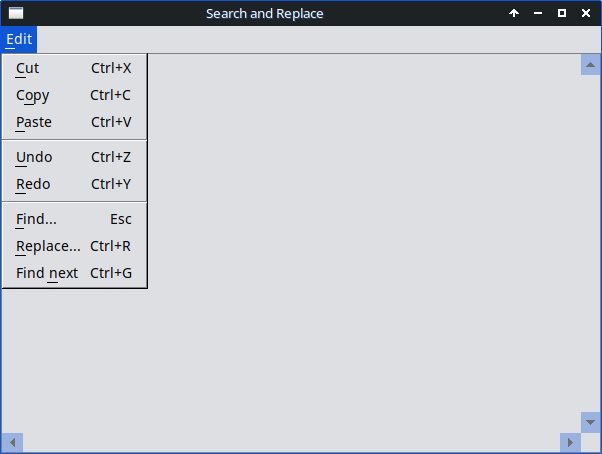
Figure 23.4: Edit Menu
Complete code:
use Prima qw(Edit Application MsgBox Dialog::FindDialog); package EditorWindow; use base qw(Prima::Window); sub profile_default { my %def = %{$_[0]->SUPER::profile_default}; return { %def, fileName => undef, menuItems => [ ['~Edit' => [ ['~Cut' => 'Ctrl+X' => kb::NoKey, sub { $_[0]->{editor}->cut }], ['C~opy' => 'Ctrl+C' => kb::NoKey, sub { $_[0]->{editor}->copy }], ['~Paste' => 'Ctrl+V' => kb::NoKey, sub { $_[0]->{editor}->paste }], [], ['~Undo' => 'Ctrl+Z' => kb::NoKey, sub { $_[0]->{editor}->undo }], ['~Redo' => 'Ctrl+Y' => kb::NoKey, sub { $_[0]->{editor}->redo }], [], ['~Find...' => 'Esc' => kb::Esc, q(find)], ['~Replace...' => 'Ctrl+R' => '^R', q(replace)], ['Find ~next' => 'Ctrl+G' => '^G', q(find_next)], ]], ], }; } sub init { my ($self, %profile) = @_; %profile = $self->SUPER::init(%profile); my $fn = $profile{fileName} || '.Untitled'; $self->{editor} = $self->insert( 'Prima::Edit' => name => 'Edit', textRef => \my $cap, origin => [0, 0], size => [$self->width, $self->height], hScroll => 1, vScroll => 1, growMode => gm::Client, wordWrap => 1, ); $self->text($fn); $self->{editor}->focus; $self->{findData} = undef; return %profile; } sub on_destroy { $::application->close } # --- Find/Replace Logic (unchanged) --- my $findDialog; sub find_dialog { my ($self, $findStyle) = @_; %{$self->{findData}} = ( replaceText => '', findText => '', replaceItems => [], findItems => [], options => 0, scope => fds::Cursor, ) unless $self->{findData}; my $fd = $self->{findData}; my %prf = map { $_ => $fd->{$_} } qw(findText options scope); $prf{replaceText} = $fd->{replaceText} unless $findStyle; $findDialog ||= Prima::Dialog::FindDialog->new; $findDialog->set(%prf, findStyle => $findStyle); $findDialog->Find->items($fd->{findItems}); $findDialog->Replace->items($fd->{replaceItems}) unless $findStyle; my $rf = $findDialog->execute; if ($rf != mb::Cancel) { for (qw(findText options scope)) { $self->{findData}{$_} = $findDialog->$_(); } $self->{findData}{replaceText} = $findDialog->replaceText() unless $findStyle; $self->{findData}{result} = $rf; $self->{findData}{asFind} = $findStyle; @{$self->{findData}{findItems}} = @{$findDialog->Find->items}; @{$self->{findData}{replaceItems}} = @{$findDialog->Replace->items} unless $findStyle; return 1; } return 0; } sub do_find { my $self = $_[0]; my $e = $self->{editor}; my $p = $self->{findData}; my (@start, @end); my $success; my @sel = $e->has_selection ? $e->selection : (); FIND: {# Calculate @start if ($$p{scope} != fds::Cursor) { if (@sel) { @start = $$p{scope} == fds::Top ? ($sel[0], $sel[1]) : ($sel[2], $sel[3]); } else { @start = $$p{scope} == fds::Top ? (0, 0) : (-1, -1); } } else { @start = $e->cursor; }# Calculate @end if (@sel) { @end = $$p{scope} == fds::Bottom ? ($sel[0], $sel[1]) : ($sel[2], $sel[3]); } else { @end = $$p{scope} == fds::Bottom ? (0, 0) : (-1, -1); } my @n = $e->find($$p{findText}, @start, $$p{replaceText}, $$p{options}, @end); unless (defined $n[0]) { message_box($self->text, $success ? ("All done", mb::Information) : ("No matches found", mb::Error), compact => 1); return; } my $nx = $n[0] + length($p->{replaceText}); $e->cursor($$p{options} & fdo::BackwardSearch ? $n[0] : $n[2], $n[1]); $_ = $e->physical_to_visual($_, $n[1]) for @n[0, 2]; $e->selection($n[0], $n[1], $n[2], $n[1]); unless ($$p{asFind}) { if ($$p{options} & fdo::ReplacePrompt) { my $r = message_box($self->text, "Replace this text?", mb::YesNoCancel | mb::Information | mb::NoSound, compact => 1); redo FIND if $r == mb::No && $$p{result} == mb::ChangeAll; last FIND if $r == mb::Cancel; } $e->set_line($n[1], $n[3]); $e->cursorX($nx) unless $$p{options} & fdo::BackwardSearch; $success = 1; redo FIND if $$p{result} == mb::ChangeAll; } } } sub find { my $s = $_[0]; return unless $s->find_dialog(1); $s->do_find; } sub replace { my $s = $_[0]; return unless $s->find_dialog(0); $s->do_find; } sub find_next { my $s = $_[0]; return unless $s->{findData}; $s->do_find; } EditorWindow->new( origin => [10, 100], size => [600, 400], fileName => "Search and Replace", font => { size => 14, name => 'Courier New' }, ); Prima->run;
Listing 23.5: Find and Replace (Adapted Code form editor.pl Prima Package)
23.4.7 Study Tip: Understanding the editor.pl Example
Now that you’ve explored the code, you should be able to fully understand the
23.5 Search/Replace Options: the easy variant
The built-in search and replace dialogs work well, but they can still be a bit cumbersome. To be honest, I often struggle with the dialog: I forget to set the Scope option and end up with no results. I also find it a bit frustrating that the dialog closes every time I run a search or replace. And while the code is excellent - I wish I were that good a programmer - it still feels a little complex.
So I asked myself: Can I make the code easier to understand and replace the built-in dialog with a custom one? Maybe even split it into two separate dialogs - a Find dialog and a Replace dialog.
It’s a nice exercise to test whether I fully understand the original code, and while working on it, I realized there were a few things I had overlooked…Let’s begin.
23.5.1 A Find and Replace dialog
I decided to make two separate dialogs with only a few options:
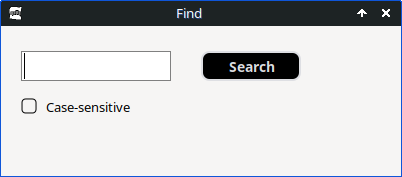
Figure 23.5: Custom Find Dialog with Only One Option

Figure 23.6: Custom Replace Dialog with Three Options
23.5.2 Find dialog
With a
sub find_dialog { my ($editor) = @_; my $mw = Prima::Window->new( text => "Find", backColor => 0xf6f5f4, color => cl::Black, size => [400, 150], borderStyle => bs::Dialog, borderIcons => bi::SystemMenu|bi::TitleBar, icon => Prima::Icon->load('img/mcm.png'), ); # default settings for editor and all inputlines my %inputline_settings = ( text => "", font => { size => 12, }, color => cl::Black, backColor => 0xFFFFFF, );# default settings for all checkboxes my %checkbox_settings = ( font => { size => 10, }, color => cl::Black, ownerBackColor => 1, hiliteBackColor => cl::LightGray, hiliteColor => cl::Red, ); my $height_buttons = 30; my $input_f = $mw->insert( InputLine => origin => [20, 95], size => [150, $height_buttons], %inputline_settings, ); my $mcCheck_CSF = $mw->insert( CheckBox => origin => [20, 55], text => "Case-sensitive", %checkbox_settings, );# at this point, the find code begins my @found = (); my $x = 0; my $y = 0; $mw->insert( Button => origin => [200, 95], size => [100, $height_buttons], text => "Search", color => cl::Blue, backColor => 0x87CEEB, default => 1, onClick => sub { my $search_term = $input_f->text; $search_term =~ s/^\s+|\s+$//g; # Trim whitespace if (!$search_term) { mcMessage(200, 100, "Warning!", "Please enter a search term!", ta::Center); return; }# reset $x and $y if the search term has changed if (!defined $last_search_term || $last_search_term ne $search_term) { $x = 0; $y = 0;# Update the last search term $last_search_term = $search_term; }# check if both input field has non-empty, non-whitespace text if ( $search_term =~ /\S/ ) {# init/reset and search from the beginning ($x = 0, $y = 0) if (! $found[2]);# Starting position for search (current cursor position) my @start = ($x, $y);# End position (-1,-1) means 'search to end of document' my @end = (-1,-1); my $flags = $mcCheck_CSF->checked ? fdo::MatchCase : 0;# perform the search @found = $editor->find($search_term, @start, "", $flags, @end);# if a match is found if ( defined( $found[0] ) ) {# Retrieve the line where the match was found # $found[1] is guaranteed to exist if # $found[0] exists my $line = $editor->get_line($found[1]);# Move the search start forward: # - If match not at end of line: continue on same line # - Otherwise: move to next line and reset column to 0 ( $found[0] < length($line) ) ? ( $x = $found[0] + 1, $y = $found[1] ) : ( $y = $found[1] + 1, $x = 0 );# Convert physical search coordinates to visual # screen coordinates. # This ensures the cursor and selection highlight # correctly even when # parts of the document are folded or wrapped. $editor->physical_to_visual($editor, $found[1]) for @found[0, 2];# Move cursor to the matched location $editor->cursorY($found[1]); $editor->cursorX($found[2]);# highlight the found match in the editor $editor->selection( $found[0], $found[1], $found[2], $found[1] ); } else { if ( !defined $found[0]) { mcMessage(200, 100, "Warning!", "No matches found!", ta::Center); return; } } } }, ); } 1;
Listing 23.6: Code Find Dialog
23.5.3 Replace dialog
With a
# Store previous search/replace terms globally so the dialog remembers # whether the user changed them between invocations my ($prev_search_term, $prev_replace_term); sub replace_dialog { my ($editor) = @_; my $mw = Prima::Window->new( text => "Replace",#backColor => cl::LightGray, backColor => 0xf6f5f4, color => cl::Black, size => [485, 150], borderStyle => bs::Dialog, borderIcons => bi::SystemMenu|bi::TitleBar, icon => Prima::Icon->load('img/icon.png'), );# default settings for editor and all inputlines my %inputline_settings = ( text => "", font => { size => 12, }, color => cl::Black, backColor => 0xFFFFFF, );# default settings for all checkboxes my %checkbox_settings = ( font => { size => 10, }, color => cl::Black, ownerBackColor => 1, hiliteBackColor => cl::LightGray, hiliteColor => cl::Red, ); my $height_buttons = 30; my $y_inputlines = 80; my $input_r1 = $mw->insert( InputLine => origin => [20, $y_inputlines], size => [150, $height_buttons], %inputline_settings, ); my $input_r2 = $mw->insert( InputLine => origin => [175, $y_inputlines], size => [150, $height_buttons], %inputline_settings, );# Vertical spacing from input lines my $distance_from_inputlines = 40; my $mcCheck_CS = $mw->insert( CheckBox => origin => [20, ($y_inputlines - $distance_from_inputlines)], text => "Case-sensitive", %checkbox_settings, ); my $mcCheck_GL = $mw->insert( CheckBox => origin => [160, ($y_inputlines - $distance_from_inputlines)], text => "Global", %checkbox_settings, ); my $mcCheck_RA = $mw->insert( CheckBox => origin => [250, ($y_inputlines - $distance_from_inputlines)], text => "Regex", %checkbox_settings, );# Used to detect "did we already replace something?" $success = 0; $mw->insert( Button => origin => [350, $y_inputlines], size => [100, $height_buttons], text => "Replace", color => cl::Blue, backColor => 0x87CEEB, onClick => sub { my $search_term = $input_r1->text; $search_term =~ s/^\s+|\s+$//g; # Trim whitespace unless ($search_term) { mcMessage(200, 100, "Warning!", "Please enter a search term!", ta::Center); return } my $replace_term = $input_r2->text; $replace_term =~ s/^\s+|\s+$//g; unless ($replace_term) { mcMessage(200, 100, "Warning!", "Please enter a replace term!", ta::Center); return }# Check if search/replace terms have changed if (!defined($prev_search_term) || !defined($prev_replace_term) || $search_term ne $prev_search_term || $replace_term ne $prev_replace_term) {# Reset search state $success = 0; $editor->cursorY(0); $editor->cursorX(0); $editor->selection(0, 0, 0, 0);# Update previous terms $prev_search_term = $search_term; $prev_replace_term = $replace_term; }# Check if both input fields have non-empty, non-whitespace text if ( $search_term =~ /\S/ and $replace_term =~ /\S/ ) { my $options = 0; # Start with no options# Add options based on your flags $options |= fdo::MatchCase if ($mcCheck_CS->checked); $options |= fdo::RegularExpression if ($mcCheck_RA->checked); FIND: {# determine start and end positions for search my @sel = $editor->has_selection ? $editor->selection : (); my @start = @sel ? ($sel[0], $sel[1]) : (0,0); my @end = @sel ? ($sel[2], $sel[3]) : (-1,-1); @found = $editor->find($search_term, @start, $replace_term, $options, @end);# if match was found if ( defined( $found[0] ) ) {# convert physical to visual coordinates $editor->physical_to_visual($editor, $found[1]) for @found[0, 2]; $editor->cursorY($found[1]); $editor->cursorX($found[2]);# highlight the found match in the editor $editor->selection( $found[0], $found[1], $found[2], $found[1] );# apply modified line text $editor->set_line( $found[1], $found[3] ); $success = 1;# if Global is checked: continue replacing automatically redo FIND if $mcCheck_GL->checked; } else { if ( !defined $found[0]) { my $message = ($success != 0) ? "Done. No matches found anymore!" : "No matches found!"; mcMessage(325, 100, "Warning!", $message, ta::Center); return; } } } } } ); } 1;
Listing 23.7: Code Replace Dialog
23.5.4 Not comfortable with this code?
I’m totally comfortable with it. You’re not? No worries at all! And now you can learn from AI! Ask for a refactoring e.g. into a more object-oriented design and AI can offer several approaches, for example:
- Classic Perl OO (using
package andbless {} ) - A dedicated Prima widget subclass (probably most 'Prima-like')
- A lightweight OO wrapper around the existing code
Closing words
In this part, you brought together many of the skills learned throughout the book and applied them to the structure of complete applications. You explored how menus shape the user experience, how dynamic items like recent-files lists keep an interface flexible, and how icons add clarity and recognition.
Most importantly, you built a full text editor step by step - connecting menus, preferences, file operations, and search tools into a coherent whole. This demonstrates how individual widgets and techniques combine into a real, functional application.